

Integrations
Embed Your AI Agent in WordPress

Adding your Answerly AI agent to your WordPress website takes less than two minutes.
Because Answerly connects seamlessly with any theme, you don't need any complex development setup, just a simple, single line of code to bring your widget to life.
Here is the step-by-step guide to embedding your AI agent on WordPress.
1. Copy Your Embed Snippet
Before heading to WordPress, you need to grab your unique widget code from the Answerly dashboard.
Go to the Instant Embed page, and click on Connect a Website:
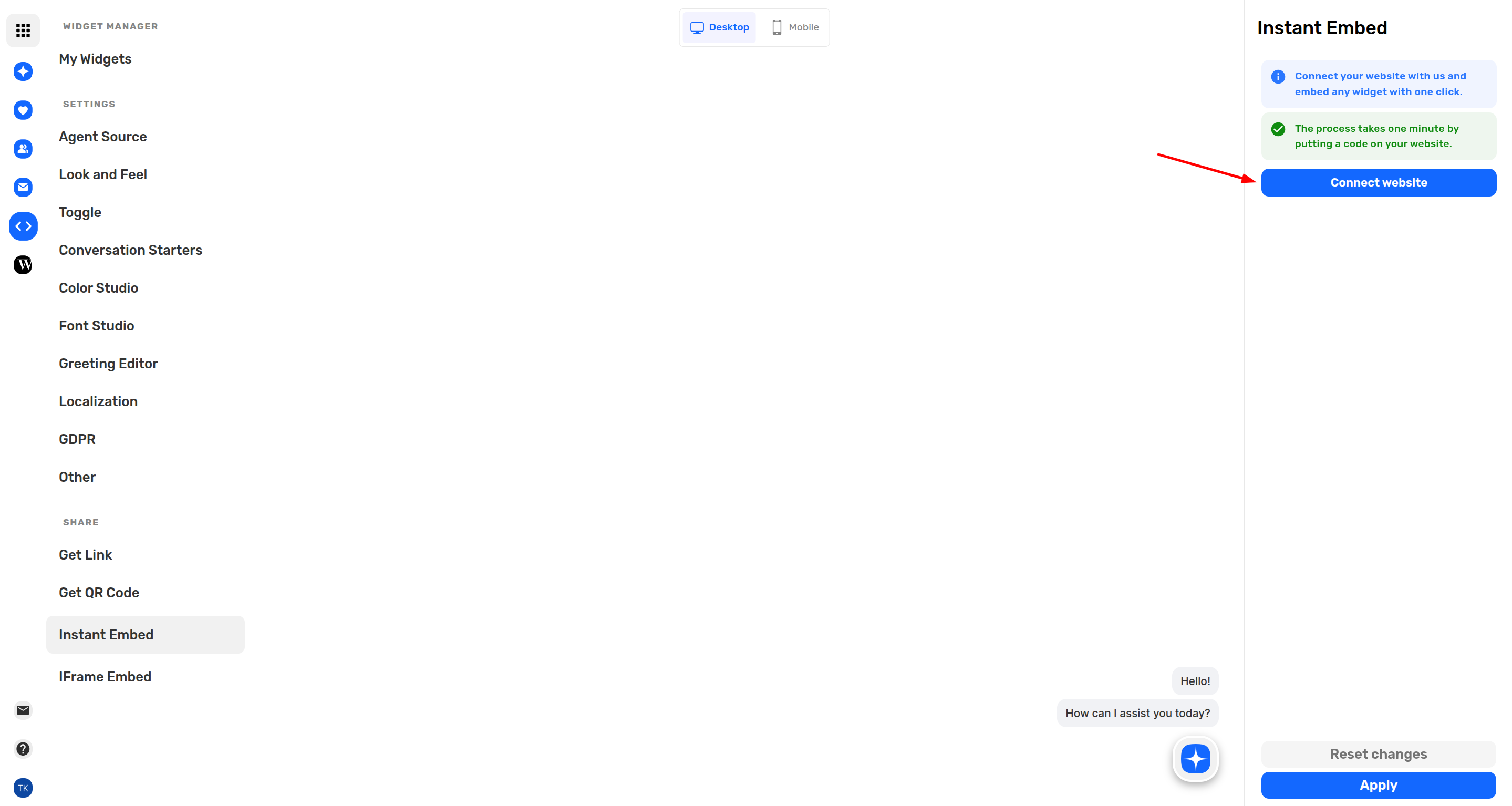
When you click connect a website you get a modal where you're asked to connect your website:
Connect a Website
Insert your website below without https and any other special characters.
www.example.comℹ️ If your website works with www then make sure you include it here too.
Once you click continue an embed code will be generated for you. Copy this script snippet to your clipboard.
2. Add Code to WordPress using a Header Plugin
The cleanest way to add your snippet without touching raw theme files is by using a lightweight code manager plugin.
- Log into your WordPress Dashboard.
- Navigate to Plugins → Add New Plugin.
- Search for "WPCode" (or Insert Headers and Footers).
- Click Install Now and then Activate.
- Go to Code Snippets → Header & Footer in your left-hand menu.
- Paste your Answerly script directly into the Header text field.
- Click Save Changes at the top right.
3. Verify the Connection
Once the code is added to WordPress, we need to establish the connection between your site and Answerly.
- Open your WordPress website in a new browser tab.
- Refresh the page a few times, this triggers the script and alerts our system.
- Head back to the Answerly website dashboard.
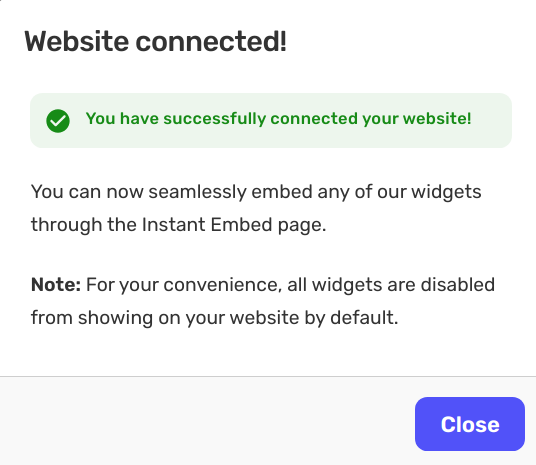
Your dashboard status will update to show that your website is successfully Verified.
4. Set Your Display Conditions
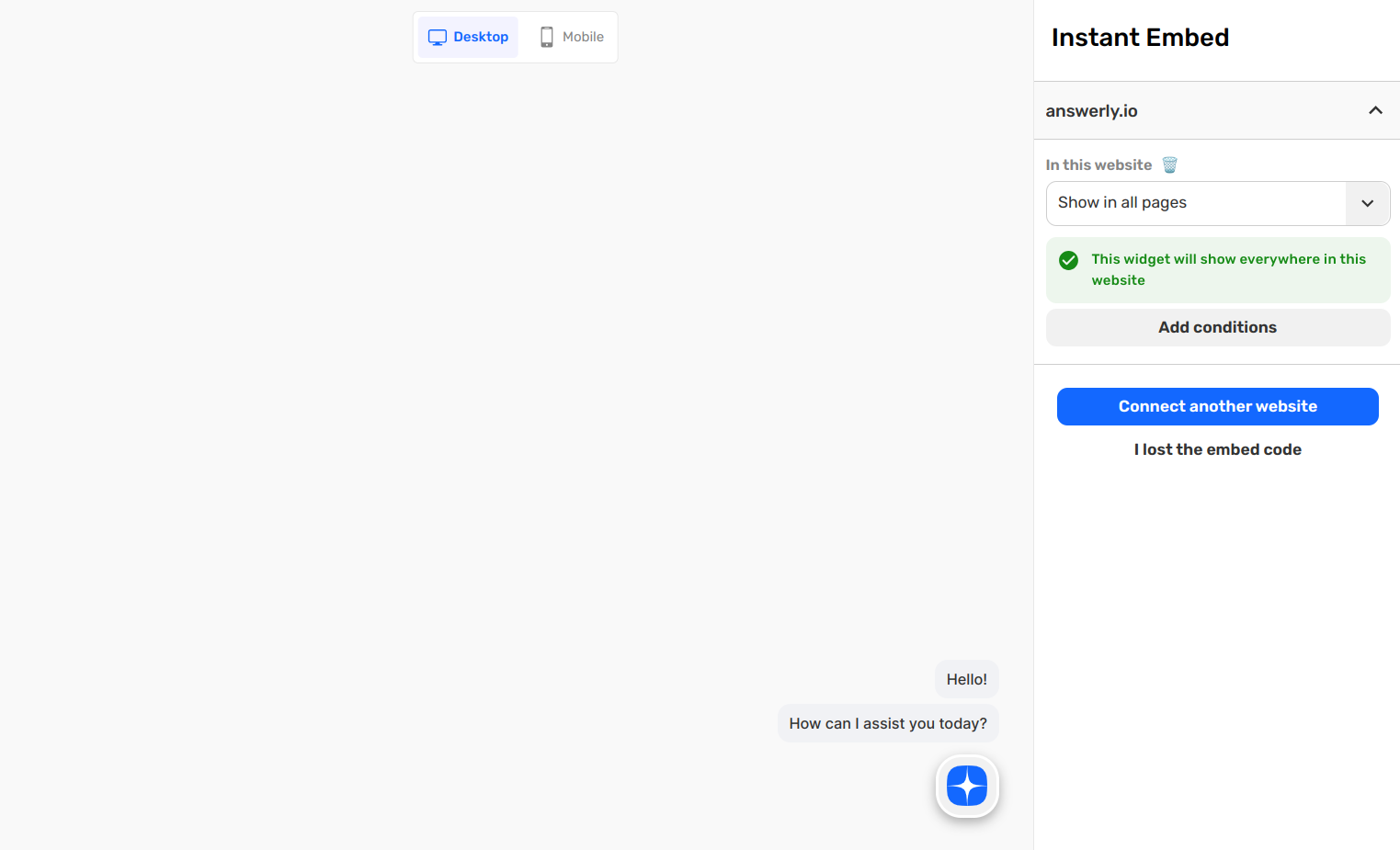
Now that the handshake is complete, you can control exactly where your AI agent appears. In your Answerly dashboard settings, choose whether you want to show your agent across all pages, or set specific path conditions to match your preference.
Need any help?
That's it! Your AI teammate should now be live and greeting visitors. If you run into any issues during the setup or the verification step won't greenlight, don't worry. Just reach out to hi@answerly.io, and our team will help you configure it in real-time.