

Integrations
Embed Your AI Agent in Wix

Adding your Answerly AI agent to your Wix website takes less than two minutes.
Because Answerly handles layout constraints seamlessly, you don't need to struggle with complex iframe bounding boxes inside the Wix editor, just use Wix's built-in Custom Code tool to inject the script globally.
Here is the step-by-step guide to embedding your AI agent on Wix.
1. Copy Your Embed Snippet
Before heading to Wix, you need to grab your unique widget code from the Answerly dashboard.
Go to the Instant Embed page, and click on Connect a Website:
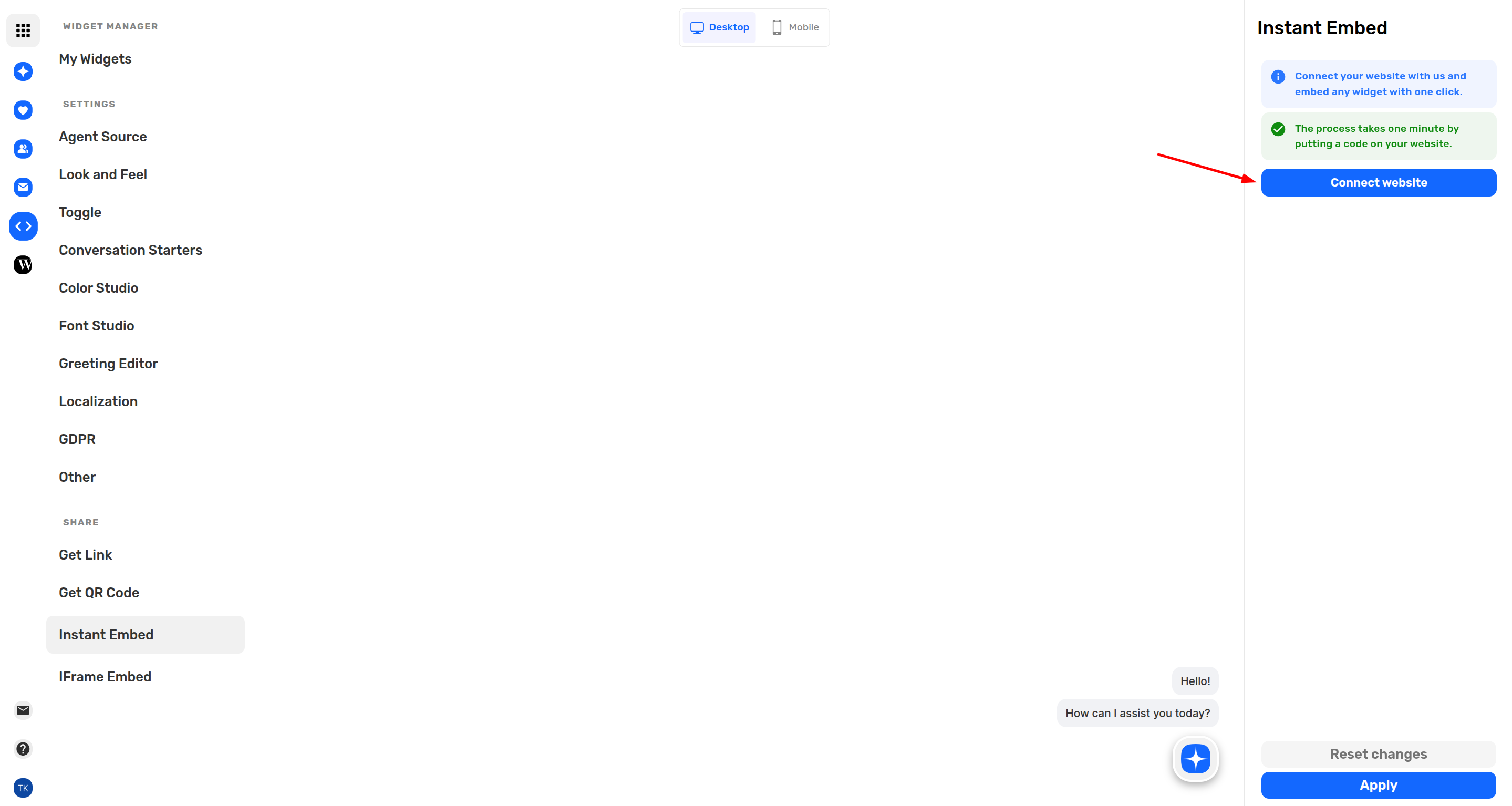
When you click connect a website you get a modal where you're asked to connect your website:
Connect a Website
Insert your website below without https and any other special characters.
www.example.comℹ️ If your website works with www then make sure you include it here too.
Once you click continue an embed code will be generated for you. Copy this script snippet to your clipboard.
2. Add Code using Wix Custom Code Settings
Wix provides a dedicated dashboard feature to safely inject tracking codes and scripts across your site.
- Log into your Wix Dashboard (make sure you are in the main site dashboard layout, not inside the visual website editor).
- Look at the left-hand sidebar menu, scroll down to Settings, and click it.
- Scroll down to the bottom of the Settings page to find the Advanced section, and select Custom Code.
- In the top right corner of the Custom Code workspace, click the + Add Custom Code button.
- Paste your copied Answerly script snippet into the text field box at the top.
- Give it a recognizable name (e.g., "Answerly AI Widget").
- Under Add Code to Pages, select All pages and choose Load code on each new page.
- Under Place Code in, choose Body - end (this guarantees maximum site speed).
- Click Apply.
3. Verify the Connection
Once the code is added to Wix, we need to establish the connection between your site and Answerly.
- Open your live Wix production website link in a new browser tab.
- Refresh the page a few times—this triggers the script and alerts our system.
- Head back to the Answerly website dashboard.
Your dashboard status will update to show that your website is successfully Verified.
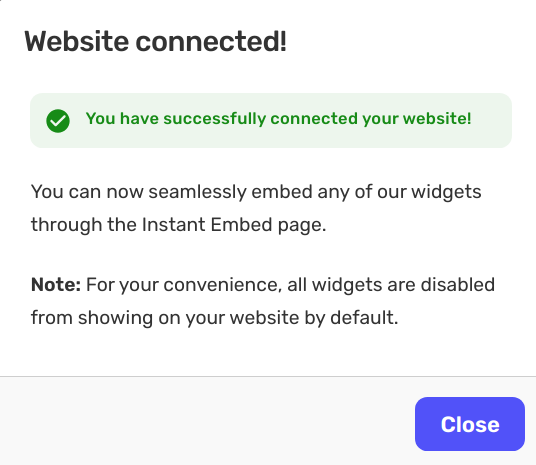
4. Set Your Display Conditions
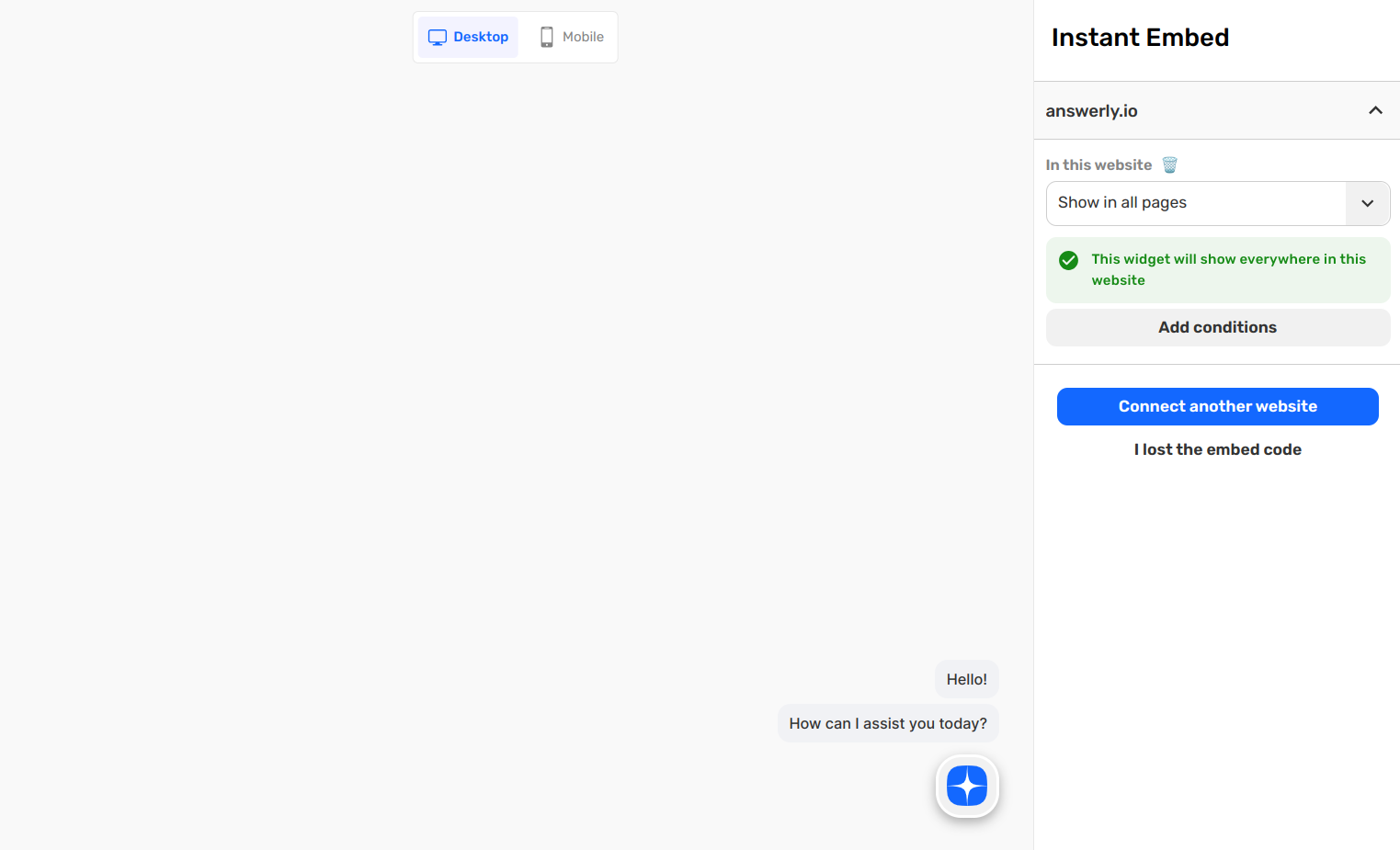
Now that the handshake is complete, you can control exactly where your AI agent appears. In your Answerly dashboard settings, choose whether you want to show your agent across all pages, or set specific path conditions to match your preference.
Need any help?
That's it! Your AI teammate should now be live on your Wix site, ready to engage visitors and capture leads. If you run into any issues during the setup or the verification step won't greenlight, don't worry. Just reach out to hi@answerly.io, and our team will help you configure it in real-time.