

The Widget
Customizing the Look and Feel

The Look and Feel settings allow you to brand your AI Agent so it feels like a native part of your website. You can customize everything from the logo to the specific messages the user sees.
1. Branding and Dimensions
To ensure the widget fits your site's design, you can set the overall size and branding:
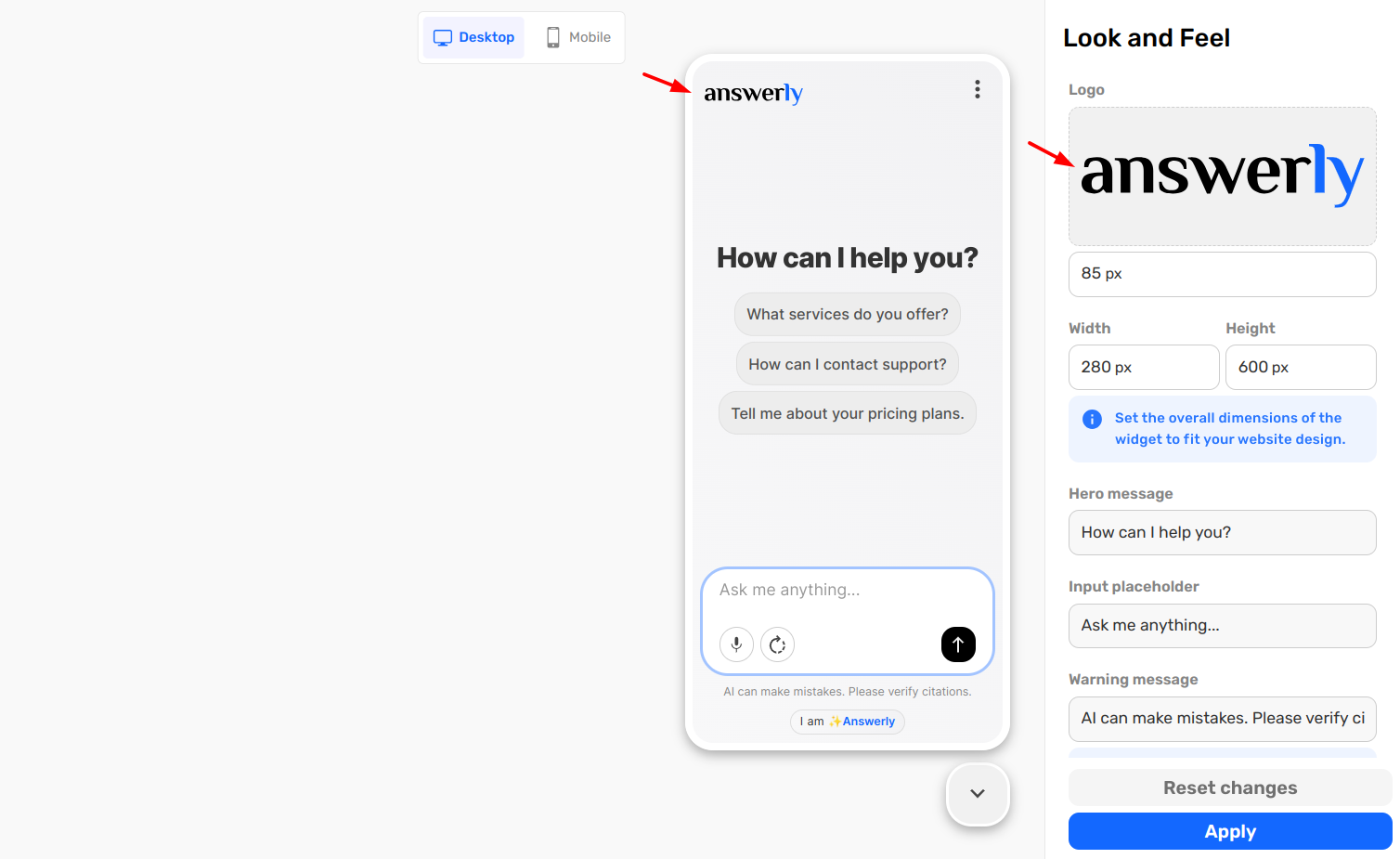
- Logo: Upload your company logo to appear at the top of the chat window.
- Widget Size: Adjust the Width and Height in pixels to ensure the chat window is the perfect size for your desktop and mobile visitors.
2. Customizing Messages
You can control the text that guides your users through the conversation:
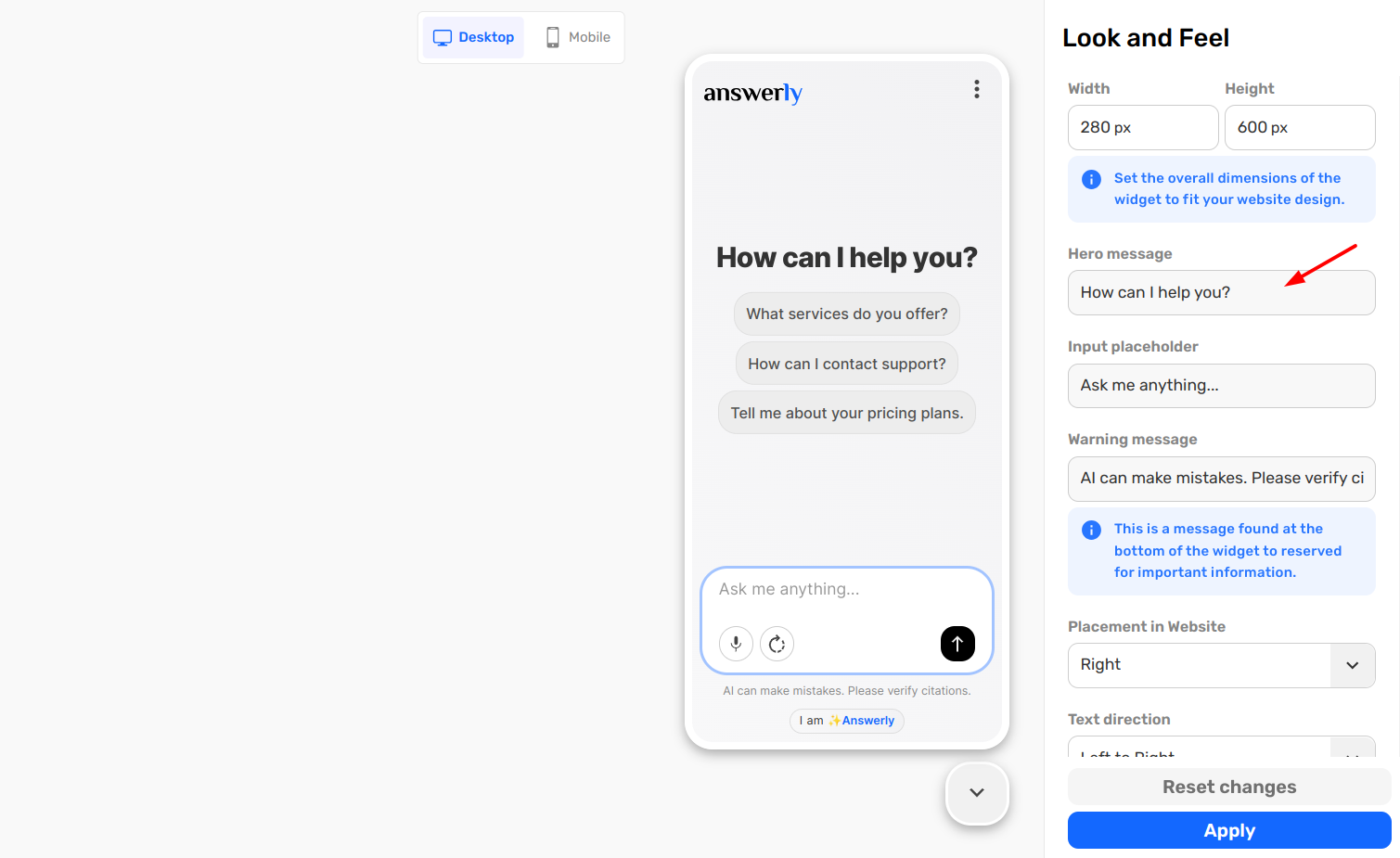
- Hero Message: This is the main heading or welcome text at the top of the widget.
- Input Placeholder: The "hint" text that appears in the box where users type (e.g., "Ask me anything...").
- Warning Message: A small note at the bottom of the widget reserved for important info, such as privacy disclaimers or "AI-generated" notices.
3. Border and Shadow Styles
Small details make a big difference in how professional your widget looks:
- Border Width & Radius: You can make your widget look "boxy" with sharp corners or modern with a high Border Radius for rounded corners.
- Shadow Blur: Adjust the shadow intensity to make the widget "pop" against your website background.
What’s Next?
Now that your branding is set, let’s look at how to position the widget on your screen and adjust the margins.